New Posts

Showing posts with label apple. Show all posts

Monday, March 21, 2016

Apple's Special Event March 21, 2016 Overview

Apple revealed 4 things in their Special Event today March 21 2016.

  • The new 4" iPhone.
  • The new 9 inch iPad Pro
  • The iOS 9.3 update
  • Research Kit & CareKit

The 4" iPhone SE

Sporting the same outer casing and design as its predecessors, the iPhone 5 and 5s, the iPhone SE not only drops the "5" numeral it also brings iPhone 6s and 6s Plus features to the 4" screen size.

Updated with the new A9 chip from its older siblings, the now simply titled iPhone SE gets the processing power to run the updated iSight Camera, and video processing required with it. It basically brings the power and features of the larger iPhones to the smaller screen size.

iOS

All in all a welcome update, and expected one, since Apple has been touting a 5 iPhone lineup since the release of the iPhone 6s and 6S plus last September. If you were put off by the larger screen, this is your chance to get the smaller version, with the smaller price tag, but with the same power and features as the larger offerings

The 9" iPad Pro

Since the iPad Air 2 did not get an update last September in favor of the iPad Pro release, it was pretty much called at that time that it would see an update mid cycle. The 9" iPad Pro as its being called, is now the 7th generation iPad released by Apple in the 9" format.

It features the same Apple Pencil supporting screen technology as its larger sibling, and gets some extra updates. Mainly the new 12MP iSight Camera available on the iPhone 6s and 6s Plus along with a 5MP front facing Facetime camera. It also gets True Tone Flash and Live Picture support which its larger sibling lacks.

The 9" iPad Pro also debuts a new storage size offering with its 256GB version. The 256GB option will also be available in future 12" iPad Pros

Overall an expected update to the 9" lineup. However it leaves some iPad Pro adopters a little miffed, by the extra features not available in the larger more expensive version that now seems slightly outdated with only 6 months in its life span.

iOS 9.3 & CareKIt

iOS 9.3 brings a few new features, and updates to existing ones. Things like Health, and CarPlay get your standard updates. While Notes receives a new security feature which lets you password / Touch ID protect your Notes.

The new update also brings with it Night Shift, which makes the screen light warmer instead of the colder blue light it normally has, for night usage that may help you sleep better.

The update also brings with it new tools to manage iPads in classrooms, and new ways for Teachers and students to interact through their iPads.

iOS 9.3 also brings with it CareKit and ResearchKit, two new frameworks for App developers to help Doctors and care givers more easily track their patients care and status. Along with HealthKit they provide a wealth of information on the patient's health.

Overall a couple of key updates, but nothing really earth shattering in terms of new features. It was not as exciting as there usual September Keynotes, and the reveals were pretty much called since last year, so nothing that we did not expect already

Links

9" iPad Pro

http://www.apple.com/ipad-pro/

iPhone SE

http://www.apple.com/iphone-se/

iOS 9.3

http://www.apple.com/ios/updates/

Thursday, December 10, 2015

Apple Pay: How does it work?

What is Apple Pay?
Apple Pay is Apple's foray into the contact-less transaction environment. It uses a special hardware chip most often referred to as an NFC chip, or Near Field Communication chip to effect the transaction.  The main draw of Apple Pay, is that you do not need to give your Bank details, credit card numbers, or any personal info to anyone to make a payment.

Stores that support Apple pay must have an NFC terminal at their checkouts to receive Apple Pay payments.

Setting Up Apple Pay
When you set Apple Pay up, Apple sends, in an encrypted transaction, your Credit Card information to your Bank or Card Issuer and a unique device code it generates from your Device and credit card info for your Bank or Credit card issuer to use.  The Bank or Issuer network then creates a device account number and other payment data, encrypts it so only they can de-crypt it later,  and sends it back to Apple and then your device. Apple cannot decrypt this package, it merely stores it on your device, but nowhere else.

Apple Pay does not store your Credit Card information on your device either, only a portion of your Number is kept so you can identify your card on screen.

You do not need to give your Credit Card information to anyone after this step.   Once your credit card has been set up in Apple Pay and all required information entered into it, it is no longer necessary to give out credit card details or make bank transactions to make purchases through Apple Pay.

Paying with Apple Pay
When you initiate a payment with Apple pay in a store or within an App, Apple Pay will transfer the encrypted package it stored, which does not contain your credit card information, and is encrypted by your Bank or Issuer network, in a transaction with the terminals in stores to confirm payment.   Your Credit Card info is never given out; and best of all cannot be read by any NFC terminal or reader because its not there.

You can also use Apple Pay to pay within Mobile Apps that support it.  These Apps are only running on your device, and again will only send this encrypted package to the merchant and then to your Bank or Issuer network, they do not transfer your credit card or banking details.

After the package has been sent to the terminal or App, the process moves forward like a normal credit card operation would. The bank or issuer is contacted and a request for payment authorization is made. The issuer or Bank de-crypts the data it receives, matches data with their records to find the card being used and okays or denies the purchase.

Your Card details remain with you and your Bank or Credit card issuer.

Payment transactions at stores and within Apps must be authorized by you when requested using your Touch ID, or passcode before the payment package is sent for confirmation. So unless you o.k the operation with your thumb print or passcode nothing is sent from your device.

Availability of Apple Pay
Apple Pay is currently available in the U.S, U.K, and Australia .
UPDATE: It is also available in Canada, but only with direct American Express Cards. Bank issued Amex based cards are not supported yet.
This will be updated when other countries make this process available.

Another thing to keep in mind, is that there is no Website or Transaction Portal for Apple Pay.  All operations happen on your device. That is you cannot go to a Website to use Apple Pay. You need to own a supported device (iPhone 6, 6 Plus, 6s, 6s Plus or iPhones 5, 5s, 5c with an Apple Watch) .

Nobody can request you enter Credit Card details in a website to confirm a payment, and no one can sell you anything through Apple Pay if its not done through your Apple Device.

Stores may request you verify your purchase by signature or other means at time of Purchase.

More information on Apple Pay
You can view stores, and Apps that support Apple Pay, as well as compatible devices on Apple's own Apple Pay page:
https://www.apple.com/apple-pay/

More specifics about Apple Pay security and Privacy of data and personal informaton.
Apple Pay security and privacy overview - Apple Support

Tuesday, December 8, 2015

Top 5 additions in the recently released iOS 9.2 Update for iPhone, iPad and iPod Touch.

iOS 9.2

At the time of writing this, Apple has released the iOS 9.2 Update for all iOS devices that support it. And it comes with a slew of fixes, improvements, and new additions to iOS 9. Here's the Top Five most interesting ones.

  1. New Top Stories section in News

    Available to English speaking countries, the News App features the most relevant stories for your neck of the woods. Now in iOS 9.2 you get a section entirely devoted to the Top News items, whatever those may be. 10 to 1, Donald Trump is there in some form or another.

  2. 3D Touch for iBooks.

    For iBooks users on iPhones 6s and 6s Plus, you can now peek and pop the book's table of contents for a quick preview of the relevant section. As well as your Notes, Bookmarks, and search results. This sounds useful in principle, but lets see how useful it really is in practice to get quick glances at these things.

  3. Apple Music Improvements

    Apple Music has received a ton of criticism over its lacking set of features. Specially when it came to playlists. With iOS 9.2 You can now more easily manage your playlists. Apple has added the ability to create a Playlist directly on your iOS device from a single song via the Add Song to Playlist option. Previously you were limited to existing Playlists, and would have to go out to the Playlist section of the music App to create one before adding songs to it. Apple also added the ability to download an entire playlist for offline listening with single tap, instead having to download each song individually.

    Apple has also added a new indicator for downloaded songs in My Music and Playlists so you know which ones are on your device and which ones are not.

    Apple added a few other less relevant features to the Music App, but by far Apple Music got the most attention this time around.

  4. Mail Drop in Mail

    Previously limited to Mac and PC, Mail Drop has now been made available on iOS devices. Basically it lets you upload larger attachments, that would otherwise go over normal E-Mail server attachment limits, to iCloud, and share them with your email recipients instead. This is specially handy when trying to send things like videos taken directly on the iPhone.

  5. Camera USB Adapter support for iPhones

    Probably the most requested feature ever, since it was only available for iPad. With iOS 9.2 Apple has now made it possible to connect your camera to your iPhone using the USB camera adapter, and transfer photos onto the iPhone directly.

    This is probably the most useful new feature since many people now rely solely on their iPhones and being able to transfer photos to the iPhone from a digital camera has always been a necessity for many.

Monday, November 30, 2015

Apple Music vs iTunes Match

Let's get ready to ruuuumble!!!!.

With Apple's new music service now available on all promised platforms, including Andriod Devices, lets take a quick look at what it does and compare it to iTunes Match.

iTunes Match

iTunes Match is a $24.99 per year service that will upload your music library to Apple's servers, and make it available to all your devices directly. It will take a max of 25,000 songs, that's twenty five thousand songs. Its been recently updated to take up to 100,000 songs.

The service will attempt to match any song in your computer's iTunes library to a song in the iTunes Store catalog. It if finds a match that song can then be played on any device you own that is using the same Apple ID. Your matched songs will be replaced with the high quality versions of the songs in the iTunes Store catalog. Any song it cannot match will be uploaded to Apple's servers as is, and will be offered to your devices for streaming and download as they were originally in your library.

The Central storage option in Apple's servers allows instant access to stream and download form any Apple device using the same Apple ID for iCloud, and the iTunes Store. This can come in handy, if you have several devices, and do not want to spend a lot of time syncing your library to each of them.

Matched songs are DRM free. Which means you can download the higher quality versions and burn them to CD, or copy them to another computer / device without any problems.


Apple Music

On the surface the service may seem very much the same as iTunes Match, but there are some key differences to be aware of.

Apple Music costs $9.99 a month for single user. or $14.99 a month for Family Membership. This means any member of a Family Sharing group can have access to it, unlike iTunes Match which is a single user service, and cannot be shared.

Like iTunes Match Apple Music will match any song in your library to a song in the iTunes Store Catalog, and will upload as is whatever it cannot match. It will make all your songs available to all your devices using the same Apple ID for streaming and download in as high quality as it can just like iTunes Match would. Up to here, Apple Music appears to be just a more expensive option to iTunes Match.

But Apple Music does a bit more than that. With the $9.99 monthly fee comes access to the entirety of the iTunes Store music Catalog for streaming and offline play back. That is you can play anything in the store for free in its entirety while you remain subscribed to the service. That is literally access to millions of songs and albums.

You also get specially curated lists of songs tailored to your tastes, as well as access to artists and albums features not available otherwise.


Differences

While iTunes Match lacks access to the entire iTunes Store Catalog, its also noticeably cheaper. $7.91 cheaper to be precise, per month. But as said you don't get access to the iTunes store catalog. This may or may not be important to you. But it needs to pointed out.

The other major difference is iTunes Match offers DRM free versions of your matched tracks. Which means you can use these anywhere you want to. Burn to a CD, copy to a USB drive sync to non Wi-Fi iPods etc.. Apple Music on the other hand will offer DRM protected tracks, which means they will only work with authorized devices, and ones that can support the Apple ID authentication. So no copying to USB device or burning to a CD, and no syncing directly form a computer to anything. All music syncing must be done over the internet to validate the subscription to the service. This Applies to all your tracks: matched and uploaded. They all become DRM protected.

This makes Apple Music simultaneously more restricted, but with much more content to offer than iTunes Match.


Cancellation

So what happens when you cancel either of these?

When you cancel iTunes Match, any downloaded songs, to your devices remain functional and playable on the device they are on. You simply loose the central cloud access on Apple's servers. So anything not on a device would need to be synced from your computer normally.

When your Apple Music subscription expires however, any song whether it was matched from your library, or made available offline from the iTunes Store catalog will stop working. You will not be able to play it, or move it, or do really anything with it. Since Apple Music songs are DRM protected, they require the subscription be active for the DRM to validate and let you play them.

Judges' Ruling

At the end of the day, if you can do without access to the iTunes Music catalog, iTunes Match is the better service in most respects. If you do need or just really really want the access to the iTunes catalog then choose Apple Music, but be aware of the DRM limitations.

Useful Links

Apple's Apple Music Website

Apple's iTunes Match Website

Thursday, November 19, 2015

How does Apple's IPhone Upgrade Program Work?

In their now customary September Keynote, Apple announced that this year (2015), would see a new way to get iPhones. No more being locked for 24 months to a carrier. No more waiting to upgrade to the newest iPhone until your plan is up. Now you take control, by being locked into a 12/24 month payment plan with Apple, oh.. wait..
But I'm kidding of course. Its actually a decent deal. Its very close to what Car Dealerships do with their Leasing options. You get a new vehicle every few years when you turn in yours, or keep paying until you've paid off the car you currently have.
Same deal with Apple's iPhones.

The way it works is simple really, its a low payment plan for an iPhone, that lets you get a brand new model every year, or keep the one you have by making a total of 24 payments.

So how does it work:

  1. You start the plan this year, and you can choose between an iPhone 6s or a 6sPlus. Lets go all out and pick a fully decked, 128GB Rose Gold 6sPlus. According to Apple's website, that phone, will cost you a flat $44.91 a month.
  2. After 12 months of paying $44.91, you get an option. Trade up to the new model, or keep your current one. If you Choose to trade up to the new model, you simply return your current one, and you get a new one. No extra payments, or anything. Just like that. Except, your plan, resets, to month 0, so you start again making payments on whatever new iPhone you got for 12 months, and the cycle repeats again.
  3. If you chose to keep your current model, no trade up, then you can keep making payments for another 12 months on it, and at that point, the iPhone is yours. No more payments need to be made after 24 months.

Now, lets do some math:

A 128GB Rose Gold iPhone 6sPlus would cost you outright (in the U.S.A): $949.00 dollars.

If you go for the Plan, and choose the upgrade at the 12 month mark: You will pay $44.91 * 12 = $538.92. That's a little over 56% of the iPhone's full retail price. At that point you can get a new one.

But say you choose to not upgrade, then you keep paying the $44.91 for another 12 months. In that case the total cost of the iPhone comes to: $1077.84. So about $128.00 more than retail. Not such a good deal then right?.

No, the Upgrade Plan includes Apple Care +. A $129.00 value. Which ends up making the 24 month deal $1 dollar less, then if you buy it outright.

All in all, the 12 month upgrade option is a pretty good one, if you don't mind paying for your iPhone every month for as long as you keep upgrading.

To get out, you need to complete a 24 month cycle without upgrading. Which overall is not too bad

The added benefit, of Apple's payment plan, is that you can change carriers whenever you want.

If you take this plan, instead of your carriers upgrade option, then, you are no longer tied to your carrier. You should be able to cancel your service with them at any time, and port your number to a different carrier.

Frequently Asked Questions

  1. Do I need to turn in my current iPhone to start the Upgrade Program?

    No, you can start an upgrade program even if you do not own a cell phone at all. You just sign up for the plan, and you get an iPhone.
  2. Does my Cell Service contract have to be up, or do I have to be eligible for an upgrade with my carrier to start the upgrade program with Apple?

    No. The upgrade program is completely independent of you carrier. Whether your still in contract with them or not, you can start the program with Apple.
  3. Do I need to make a down payment to start the Upgrade Plan?

    No, not at all. There are no down payments, or signup fees.
  4. Do I need to own an iPhone to start the Upgrade Plan

    No. You don't even need to own a cell phone at all to start the Upgrade plan.
  5. Are the iPhone's you get on the upgrade plan unlocked?

    Yes. Apple will give you an unlocked iPhone of your choice, when you start a plan, so you can use it with any carrier.

Apple's Upgrade Program Website

http://www.apple.com/shop/iphone/iphone-upgrade-program

Saturday, July 26, 2014

What to do, when buying a second hand iPad, iPhone, or iPod Touch that supports iOS 7 or above.

What to do, when buying a second hand iPad, iPhone, or iPod Touch that supports iOS 7 or above.

With iOS 7, released on September of 2013 Apple added a new security feature to all its touch enabled devices in an attempt to cut down on device theft.

This feature was called Activation Lock.

Before iOS 7 when somebody stole a touch enabled Apple device, all they had to do to make it functional was reset to factory settings either via the Erase all Settings and Data option on the device, or through iTunes on a computer.

This would set the device to an "As New" state allowing the thief to use the device without any issues.

iOS 7 changed all that with Activation lock.

Basically, when a device is registered with iCloud, and Find My iPhone is turned on in iCloud Settings on the device, it becomes locked the Apple ID and Password that was used to register it. It cannot be reset to factory condition without the password, and will be locked if it is attempted to be reset through iTunes on a computer.

With Find my iPhone (iPad or iPod) active, the owner can track the device's location through the iCloud.com website or from another device that has the Find my iPhone App installed.

The owner can then choose to delete all content from the device and lock it. When this happens, a screen requesting the Apple ID and password will appear on the device preventing any access to it until the credentials are provided

Many thieves will attempt to sell off these locked devices to unsuspecting customers through online services such as E-Bay or Craigslist where its impossible to view the device before purchase.

But what can one do to avoid falling victim to these sellers? Here's a list of of things you can do to make sure the device is not locked, and properly cleared, or to at least avoid losing money on an ill fated transaction?

Verifying the device is correctly wiped:

Hello ScreenWhen a iDevice is first turned on when it was first bought, it will start up at the Welcome (Hello) screen. When a device is reset, it will return to this screen. However, if the owner did not properly remove the device form their Apple ID, the device will show the activation lock screen after selecting a language and connecting to Wifi.

When buying in person, start the setup process, select a language, and connect to a wifi network. If the device is properly wiped and removed from the Apple ID of the previous owner, the next screen should be the Restore screen, where you can choose to use an iCloud backup to set up the device from, or continue and set up as new.

If buying sight unseen, its best to have the seller provide contact information, and withhold payment until you are certain the device is not locked.

You can also request the seller provide a picture of the device at the iCloud settings screen in Settings->iCloud, and verify that there is no iCloud account signed in, and that Find My iPhone / iPad is turned off there.

Even if it has not been wiped clean, having no iCloud account signed in there, means the device is not locked to an Apple ID, and should not become activation locked to it once restored.

Apple used to have a service at http://icloud.com/activationlock where you could verify the activation lock status of a device, but has since taken it down, and is no longer available.

If it ever returns, it is a great tool to use when buying second hand as it could easily tell you if its locked or not.

Should the device not be correctly wiped, you can direct the seller to this Apple Article What to do before selling or giving away your iPhone, iPad, or iPod touch, and request they follow its instructions to wipe the device and remove it from their account

This is a basic step, as nobody would want to sell a device that may contain private and sensitive information. So a wipe must be performed.

If the seller is unable or unwilling to do this, then this should raise big red flags, and the device should not be purchased from this seller

Activation Lock Screen

If the device appears to be at the Activation Lock screen, then it was most likely locked from iCloud by the original owner.

Again, requesting the seller to remove it form their account through iCloud.com should be the first step before any money is exchanged.

If the seller is unable or unwilling to do this, again, red flags should be raised, and purchase of this device should not be considered

Passcode ScreenIf the device is at the standard Passcode unlock scree you should again request it be properly cleared before purchase.

If the device is running iOS 6 or an earlier version:

Request that the previous owner sign out of all services under Settings, and clear the device by going to Settings->General->Reset->Erase all Content and Settings


Default AppsWhen properly wiped, and released from the previous owner's Apple ID, the device will have nothing on it except the Default built in Apple Apps. As tempted as you may be to want to keep some of the sellers Apps or other content, this is never a good idea. All Apps, media, books, etc... bought or downloaded from Apple's stores are forever tied to the Apple ID that was used to buy/download them. As such Apps will always require the Apple ID and password that was used to download them, to update them in the future and media and books will remain tied to the Apple ID used to buy them, and may not be accessible later.
Wednesday, October 24, 2012

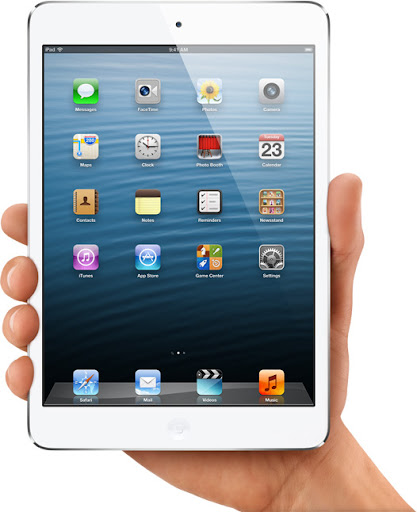
Overview of iPad Mini and iPad 4 reveals

iPad Mini
I'm by no means an Apple Fanboy... I like their products, but I can still bash them when required.
Today I want to write a bit about their keynote this Tuesday and specifically their reveal of the new iPads
Their Tuesday reveal of their new iPads left many to question many decisions on their new products not because they are  bad, but because they are at all.

iPad 4

Having released the iPad 3 only 6 months ago, it puzzles me why they would release a new one so soon. Usually they have a yearly release of products, iPhones for the most part follow the yearly release for major updates, and a 6 month release for and versions such as the 3Gs and the 4s.
iPads have been pretty good at keeping a yearly release until now. but that's not really the puzzling thing. What is more intriguing is the decision to discontinue the iPad 3 in favor if the iPad 4 but leave the iPad 2.
Looking at the specs, it seems the iPad 4 is really only a very minor improvement over iPad 3. So it makes sense that they would not need two extremely similar products competing with each other. However that leaves the question of why release an iPad 3 at all 6 months ago. They could have simply kept the iPad 2 for those 6 months, and release the iPad 4 as the iPad 3 along side the iPhone 5. Then it would have been a major upgrade.
For those fearing the iPad 3 will no longer receive upgrades, I find that extremely hard to believe. Just because they aren't making the device anymore doesn't mean they'll stop supporting it with upgrades. At least one more major update so it gets 2 major updates total like the iPad 2 had.

iPad Mini

This release is the one I have to question more. The iPad mini is not only not a real good competitor in terms of specs in the 7 inch market niche, but its also the more expensive alternative.
Personally I don't think the 7 inch tablet market is the way to go. Nor do I think a 5 inch iPhone is the way to go either. The intermediate sizes make it too cumbersome for a phone and not large enough for a good tablet experience. If I want to watch movies, look at pictures, read books, I want to do it in a larger screen rather than a smaller screen. The 10 inch screen is a good size for a handheld device without sacrificing detail or size. For this reason the 7 inch tablet market is one I'm not particularly interested in. Nor do I think many people are. Walking around places like Starbucks, Libraries, museums etc... People carry 10 inch tablets with them. Very very few opt for the smaller 7 inch ones. Even then more people are going for the 4.x inch screen phones. Samsung even has a niche all its own with the 5 inch Galaxy Note. How many galaxy notes have you seen around? Again the size makes it cumbersome for a phone, and limits the features a tablet can provide.
With 7 inch tablets as low as 150 bucks, what are you getting in the mini for the extra 200 dollars that warrant it. Yes tons of apps and games are available in the store, but the display is a standard display well below other tablets resolutions, the processing power is also not to par with other tablets in the range.
At the time of writing, the Google Nexus 7 beyond its manufacturing issues, still offers the best bang for the buck. Its even more surprising when Steve Jobs himself outlined 5 reasons why 7 inch tablets where not viable options.
Only time will tell if the Mini really is as successful as they hope it is. Personally 7 inches is not enough for me on a tablet and I don't think the mini will get a version 2.

Sunday, September 23, 2012

iTunes survival Tips

iTunes icon
Apple has come a long way since the days of the Macintosh Apple II, but it seems in their effort to keep all store purchases secure and "un-pirateable" they've also made their users lives a living nightmare.

iTunes is probably the most hated piece of software out there that isn't a virus, or malware (Well... technically speaking). It makes seemingly simple tasks incredibly complex. And things like recovering your library after a PC crash become almost impossible.

Its less offensive now, but a few years ago, it would seem iTunes updates would show up every couple of days, but were close to 100MB in size. That's not an update, that's the whole damn software to be downloaded every couple of days. Now it seems to have cut back on the frequent updates a little. And also reduced the size a tiny bit too.  But still at an average 70 or 80MB a pop it still kind of annoying.

Still since there is no alternative to manage your iDevices, were stuck with it, so here are some tips to keep iTunes under control or at least make it a little less aggravating.

# 1. Consolidate


Consolidation is one of the few things that can aid in maintaining  control of your library. If you have music strewn about all over your hard drive or in different hard drives, it makes it very hard to manage, and recover should something go wrong. Consolidating makes iTunes copy all music, videos and playlists to a single location for it to manage.

Go to  File->Library->Organize Library and tick the Consolidate check box to make iTunes put everything inside the iTunes library folder.

# 2. Weed Out


We all like to have all our content at our finger tips, but there comes a time when you need to do some spring cleaning, and remove things you no longer need. Clearly 3 moth old Podcasts you downloaded from a website devoted to onion chopping that you've been to only once may not be relevant any more. Remove them not only to free up space the limited storage on your device, but also to make maintenance of your library a little easier.

I've had to backup iTunes libraries for clients that are in the 100's of  GB but most of the space is taken up by old podcasts or video files they haven't watched or heard in years. While keeping your video and music library for posterity is always good, there are somethings that are just not worth the space they take up. Things like podcasts and other time relevant content like news casts etc..., can be erased. With iCloud you can still re-download the content should you need to in the future.

# 3. Keep a single Apple ID.

Yes as annoying as it sounds, the best practice is to keep a single Apple ID. Why because you can never merge the extra accounts, and you'll have content in one you won't in the other. It also makes it hard to keep a functional consolidated library if content is strewn about in several accounts. I'm a victim of this myself, I have 2 accounts. The problem used to be you could not download content from a country specific store while in another country. This seems to have changed, as I can now download content from the American store while abroad. So I keep only my american account. But when I used to travel, I had to use a local account to be able to download things. Sadly there's no way to merge account purchases. So my purchases in the other account have had to remain there. As of this writing there is still no way to merge Apple ID's from different countries which is very very annoying for many, many people. It becomes more irritating when you realize content in certain country stores is really bad, and you still have to resort to an american store to download. I would suggest to keep an american account for pretty much everything. It does not affect your carrier fees, or local country data whatsoever, but does it make it easier to manage content, and get the most up to date content.

# 4. Backup.

This is the most important point. Backup your iDevice regularly to your iTunes library, and backup the iTunes library as well. Backing up your iDevice also downloads your Camera Roll. Which otherwise does not get synchronized in iTunes. So its important if you wish to have your photos saved. Backing up your library is also a must, as it will let you restore to any iDevice should the need arise. Backing up the entirety of the library folder whether on a Mac or PC, will preserve everything stored in your library and synced, as well as your iDevice backups. Which contain other things not synchronized to the Library like the camera roll. Should your computer hard drive die, having a backup of your library handy, and up to date and a current backup of your iDevice should reduce headaches to a minimum. And remember, there's no way to restore your library from your device. Though there are some applications out there that claim to do it, but almost all of them cost, and I don't know if they are any good.


Friday, September 21, 2012

iOS 6 Issue List

iOS6 Issues
I'm starting a list of issues I'm having with Apple's latest iOS update.

This is an iPad 2.

iOS 6 Official download.

I want to point out there's several things I like about the update, and this list will not include the lack of certain features in the release for iPad 2 that exist for the iPhone5 and iPad 3 such as Siri.
This is going to be a list of issues I'm having, with the release as is, and the included features.
I'll update the post with more issues as I encounter, and also solutions to the problems also as i find them.
1. Apple Maps. O.k. I'll cheat on this one but not really because it really isn;t in any release. Lack of Street View:.

As an avid user of Google Maps before, the lack of street view in the new Apple Maps app is quite jarring and sorely missed. This feature really needs to exist very soon. Or hopefully Google will release a new version of Google Maps to the App Store for download. As cool as Fly-through is for the cities that have it, its a gimmick, and not very useful when looking for an address.
2. iTunes: It may be just me, but the iTunes store is pathetically slow now, and keeps saying it can't connect. Loading image tiles in any section takes ages, and search is almost unusable.
Apparently there is a strange fix for this that gets rid of the "Cannot connect to iTunes store" popup. But not the slowness.
Go to Settings > General -> Date & Time, and set the date to one year ahead. You'll get a couple of notices about backups, and the same dreaded popup message. When that happens cancel it, and set the clock back the the correct date. The annoying popup should go away once you log on to the store successfully the next time.
Search is still very slow though, and the image loading inside iTunes still has issues. Before you comment about my internet connection,I actually downloaded a Movie rental from iTunes and it finished in about 25 minutes. Though it did take a while to get started, and even failed the first time. Though once it started it downloaded really fast, and with no other issues.
iPad iTunes
3. Internet connectivity issues. Seems the iPad is having some issues accessing the internet. Now my PC has no issues, and connects fine to my router, and the iPad had no issues before the upgrade. So something in iOS 6 is not liking my router or takes a while to negotiate the connection. It happens in quite a few apps. Most notably... Facebook.
Well that's it for now. I'll update as i keep using it, and having issues with it of course.